转自 https://octoperf.com/blog/2017/03/09/how-to-extract-data-from-json-response-using-jmeter/
People that successfully extract content from Json documents do two things very well:
- First, they understand how the json format works,
- Second, they put 100% of their resources execute and scaling Json extraction techniques.
But, you’re probably wondering:
How do JMeter Experts extract relevant content from Json responses?
Here is the secret recipe to mastering Json extraction.
Json is Simple
To get a better understanding of what Json is, here is an example Json document:
{
    "store": {
        "book": [
            {
                "category": "reference",
                "author": "Nigel Rees",
                "title": "Sayings of the Century",
                "price": 8.95
            },
            {
                "category": "fiction",
                "author": "Evelyn Waugh",
                "title": "Sword of Honour",
                "price": 12.99
            }
        ],
        "bicycle": {
            "color": "red",
            "price": 19.95
        }
    },
    "expensive": 10
}
Json is an extremely simple data format which has taken over XML a few years ago.
You probably ask yourself: why do I need to learn Json?
An increasing number of REST APIs and servers are using Json as their primary data exchange format. At OctoPerf, we are heavily using Json to exchange data between our AngularJS frontend client and our Spring Boot backend.
Want to know the best part?
Since, JMeter 3.0, it’s far easier to extract data from Json responses using the Json variable extractor. In other words, Json extractors are natively available.
JMeter JsonPath Plugin
JMeter JsonPath Extractor Plugin can be downloaded and installed from jmeter-plugins website. As of JMeter 3.0 and above, Json plugin is optional.
Installing JMeter JsonPath Plugin
- Download plugins-manager.jar and put it into
JMETER_HOME/lib/extdirectory, - Restart JMeter,
- Click on Options > Plugins Manager in the top menu,
- Select Available Plugins tab,
- Select Json Plugins and click on Apply Changes and Restart JMeter.
The JMeter Json Plugin should be available in right click menu Add > Post Processors > Json Path Extractor.
Are you lazy? Because I am. Why not use the native Json Path Extractor instead!
JMeter Json Path Extractor
JMeter’s Json Post Processor uses Json Way, a Java Json Path API, to perform JSon path extraction on server responses.
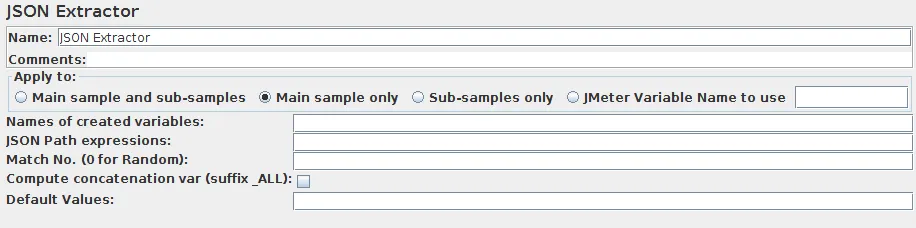
The Json Path extractor should be placed under an HTTP Sampler. It has several possible settings, hence the most relevant are:
- Variables Names: semi-colon separate variable names,
- JSON Path Expressions: self explanatory.
- Default values: in the case the expression doesn’t apply to the json document being processed.
Awesome! But how do I get started?
Example Json Paths
Here are some example Json Path expressions that can be used to extract data from the Json document exposed above:
| JsonPath (click link to try) | Result |
|---|---|
| $.store.book[*].author | The authors of all books |
| $..author | All authors |
| $.store.* | All things, both books and bicycles |
| $.store..price | The price of everything |
| $..book[0,1] | The first two books |
| $..book[:2] | All books from index 0 (inclusive) until index 2 (exclusive) |
| $..book[2:] | Book number two from tail |
| $..book[?(@.isbn)] | All books with an ISBN number |
| $.store.book[?(@.price < 10)] | All books in store cheaper than 10 |
| $..book[?(@.price <= $[‘expensive’])] | All books in store that are not “expensive” |
| $..book[?(@.author =~ /.*REES/i)] | All books matching regex (ignore case) |
| $..* | Give me every thing |
| $..book.length() | The number of books |
As you can see, it’s easy and flexible to query specific information from a Json document and put them into variables. Let’s explore some of the examples above with JMeter.
Guess what? We’re going to try them out.
Real-life JMeter Examples
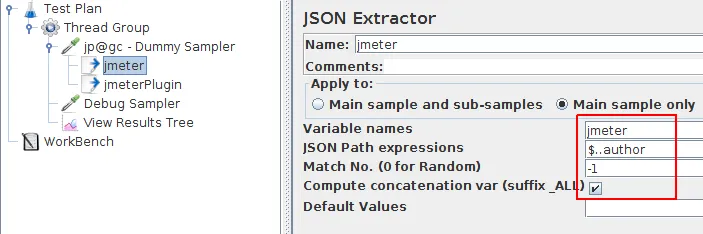
Our sample JMX shows how both the JMeter Json Extractor and Plugin JsonPath Extractor work. Before JMeter 3.0, the plugin was required to perform JsonPath extractions. As of JMeter 3.0, there is an integrated support for Json Extractions.
Ready for some action? Let’s go!
Arrays Extraction
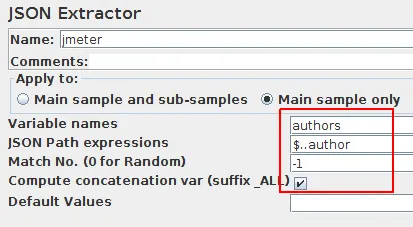 Extracting all authors from the store
Extracting Arrays makes possible to extract multiple values from a single Json document at once. For example, we could extract all the authors from the book store:
- Variable Name: authors
- JSONPath Expression: $..author
You will get the following variables:
- authors_1=Nigel Rees
- authors_2=Evelyn Waugh
- authors_3=Herman Melville
- authors_4=J. R. R. Tolkien
- authors_ALL=Nigel Rees,Evelyn Waugh,Herman Melville,J. R. R. Tolkien (if Compute concatenation checked)
- authors_matchNr=4
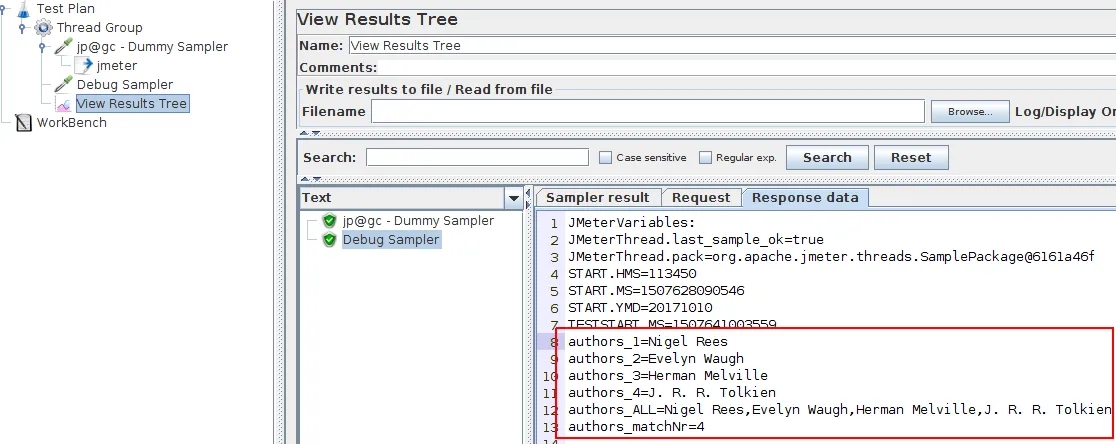 We got all the authors of all the books!
Conditional Extraction
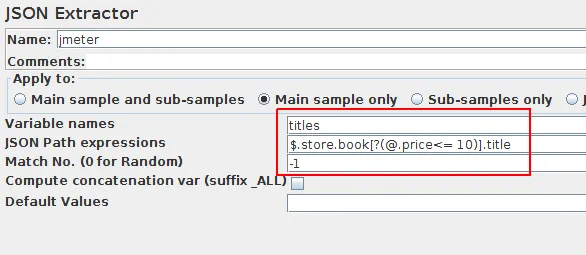 Extracting Book Titles selectively
Suppose now that we want to extract the title of the books whose price is less than or equal to 10:
- Variable Name: titles
- JSONPath Expression: $.store.book[?(@.price<= 10)].title
You will get the following variables:
- titles_1=Sayings of the Century
- titles_2=Moby Dick
- titles_matchNr=2
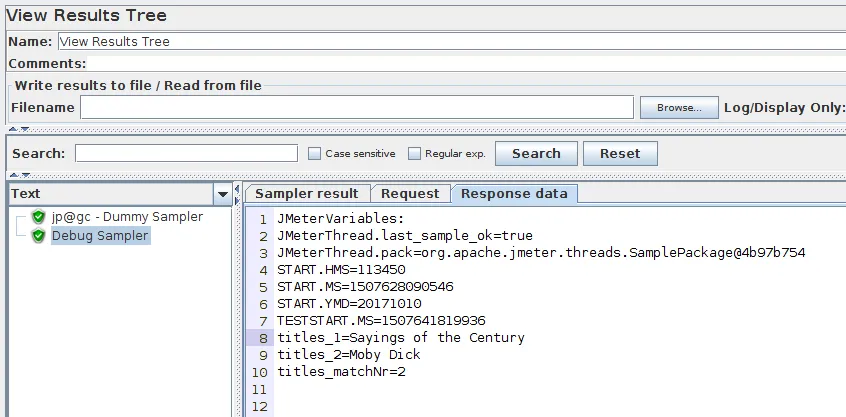 Title of books priced below 10.
Multiple Extraction
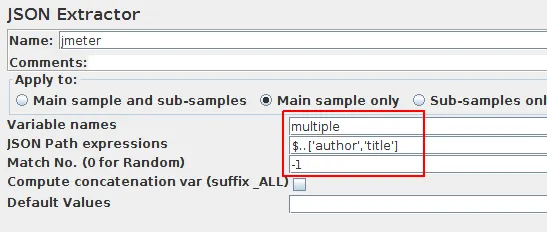 Extracting Both Book Author and Title
Suppose now that we want to extract multiple Json fields at the same time. For example, we would like to query all author and titles:
- Variable Name: multiple
- JSONPath Expression: $..[‘author’,‘title’]
You will get the following variables:
- multiple_1={“title”:“Sayings of the Century”,“author”:“Nigel Rees”}
- multiple_2={“title”:“Sword of Honour”,“author”:“Evelyn Waugh”}
- multiple_3={“title”:“Moby Dick”,“author”:“Herman Melville”}
- multiple_4={“title”:“The Lord of the Rings”,“author”:“J. R. R. Tolkien”}
- multiple_matchNr=4
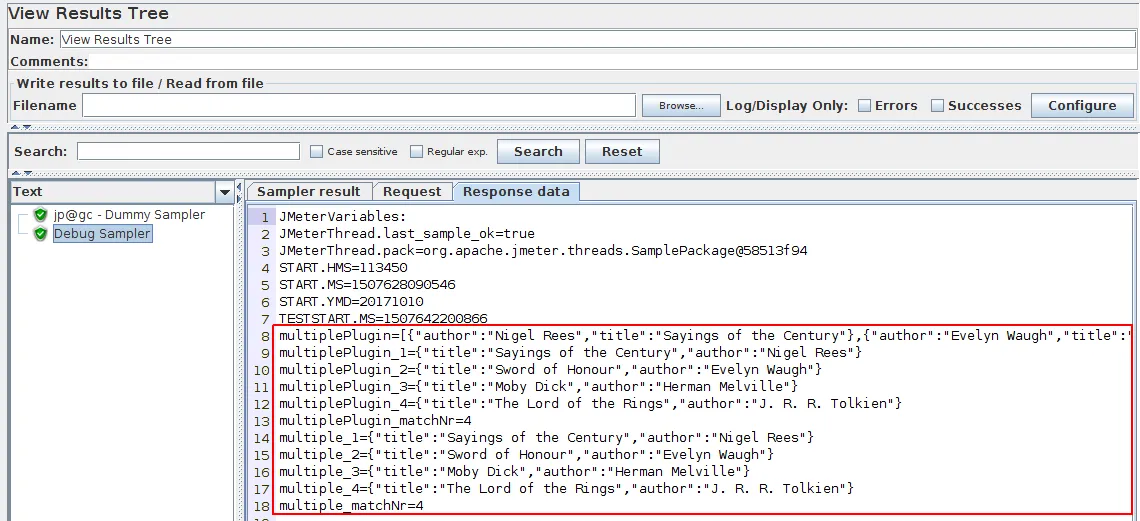 Extracting Both Book Author and Title
3 Common Mistakes
Now, you’re probably wondering: what can possibly go wrong?
The 3 common mistakes that should be avoided are:
- Don’t define multiple variables within a single Json Path extractor: the script may become hard to understand / maintain,
- Don’t write expressions susceptible to work only on specific json responses, try to stick to the general case,
- The simpler the solution, the better will be the script maintainability.
Good to know Work-Arounds
Depending on the case, you may use alternate techniques to extract content from a server response.
Regular Expression Extractor
Suppose you have a very simple Json document with the following content and you want all first names:
{
 "name":"Simpsons family",
 "members":[
   {
  "firstName":"Homer", "lastName":"Simpson"},
   {
  "firstName":"Marge", "lastName":"Simpson"},
   {
  "firstName":"Bart", "lastName":"Simpson"}
  ]
}
In this case, the regular expressions extractor may fit well because it’s very simple to write a regular expression.
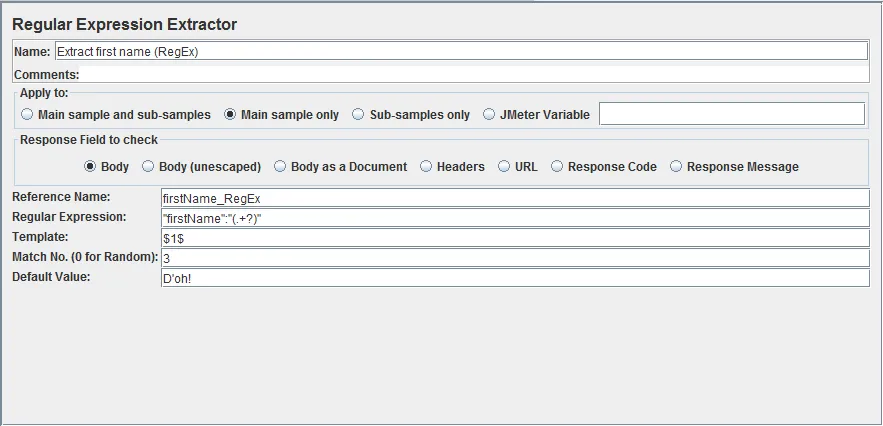
We have defined the following settings:
- Regular expression: “firstName”:“(.+?)”,
- Template: $1$,
- Match Nr: 3, (we want Bart)
- Default value: whatever you want in case of error.
JSR223 with External Library
By using the Minimal Json Library, and adding it to JMeter you can do the job of extracting json data from a server response too.
Configuring JMeter With an external Lib
- Download the Minimal Json Library latest Release,
- Put it in /lib/ext,
- Restart JMeter.
Now create a JSR223 Post processor under the Http Sampler whose server response is a Json document. Select Java language and inspire from the following script:
import com.eclipsesource.json.JsonObject;

String jsonString = prev.getResponseDataAsString();
JsonArray members = Json.parse(jsonString).asObject().get("members").asArray();
vars.put("firstName",String.valueOf(members.get(2).getString("firstName","")));
The code above extract the firstName of the third family member and puts it in a variable.
JSR223 with Groovy
JSR223 PostProcessor has Groovy language support which has built-in JSON support so you won’t have to add any .jars. Example code:
import groovy.json.JsonSlurper

def jsonSlurper = new JsonSlurper();
def response = jsonSlurper.parseText(prev.getResponseDataAsString());
vars.put("firstName", response.members[2].firstName.toString());
BeanShell Json Extractor
Although the same result can be achieved using the BeanShell post processor, we don’t recommend to do so for performance reason. JSR223 post processors should be used in favor of BeanShell post processors. JSR223 with Groovy is several magnitudes faster than BeanShell.
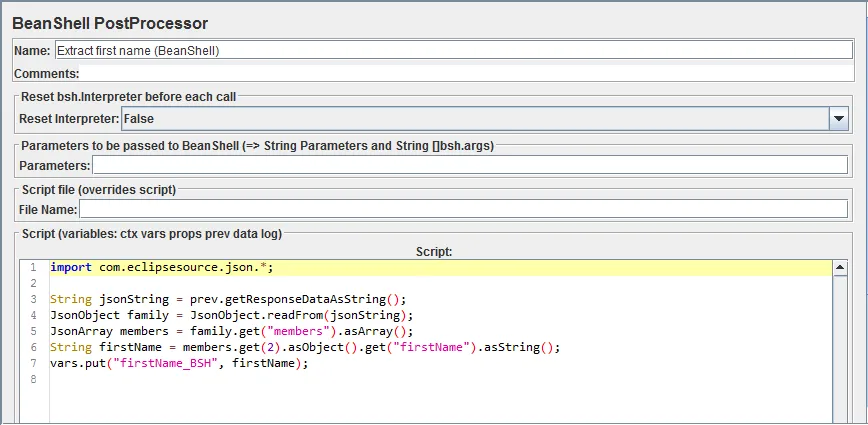
Configuration is very similar to JSR223.
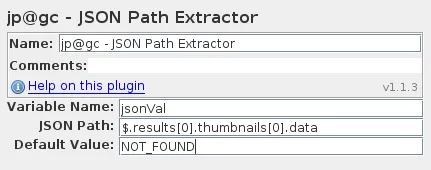
JMeter Plugins (Json Path Extractor)
Since JMeter 3.0, JMeter Json Extractor Plugin should be abandoned in favor of the built in Json Path extractor. This plugin is still useful if you are using older JMeter versions. (2.13 and below)
Exploring
Json extractors are particularly useful in the following cases:
- Json REST Apis (trending),
- OAuth2 authentication mechanisms, which uses Json to send and receive access and refresh tokens,
- Single Page Web Apps (React or AngularJS are mostly seen) which communicate with JSon REST backends.
Conclusion
There are several ways to extract data from Json document using JMeter. Our favorite one is the built-in Json Extractor. And, best of all, Json extractor is fully supported by OctoPerf!