
背景:aws-robotic ros-gazebo 仿真在ros2以及ros melodic 中的使用网上讲解较多,本文主要介绍ros kinetic +gazebo9 下turtlebot3 机器人在 aws-robomaker-small-house-world中的导航仿真。
一、 gazebo 室内环境
Project: aws-robotics/ aws-robomaker-small-house-world git链接:https://github.com/aws-robotics/aws-robomaker-small-house-world
(1)下载源码
$ cd catkin_ws/src
$ git clone https://github.com/aws-robotics/aws-robomaker-small-house-world
$ cd ../
$ catkin_make
(2)运行
$ source develop/setup.bash
$ roslaunch aws_robomaker_small_house_world view_small_house.launch
结果如下 :
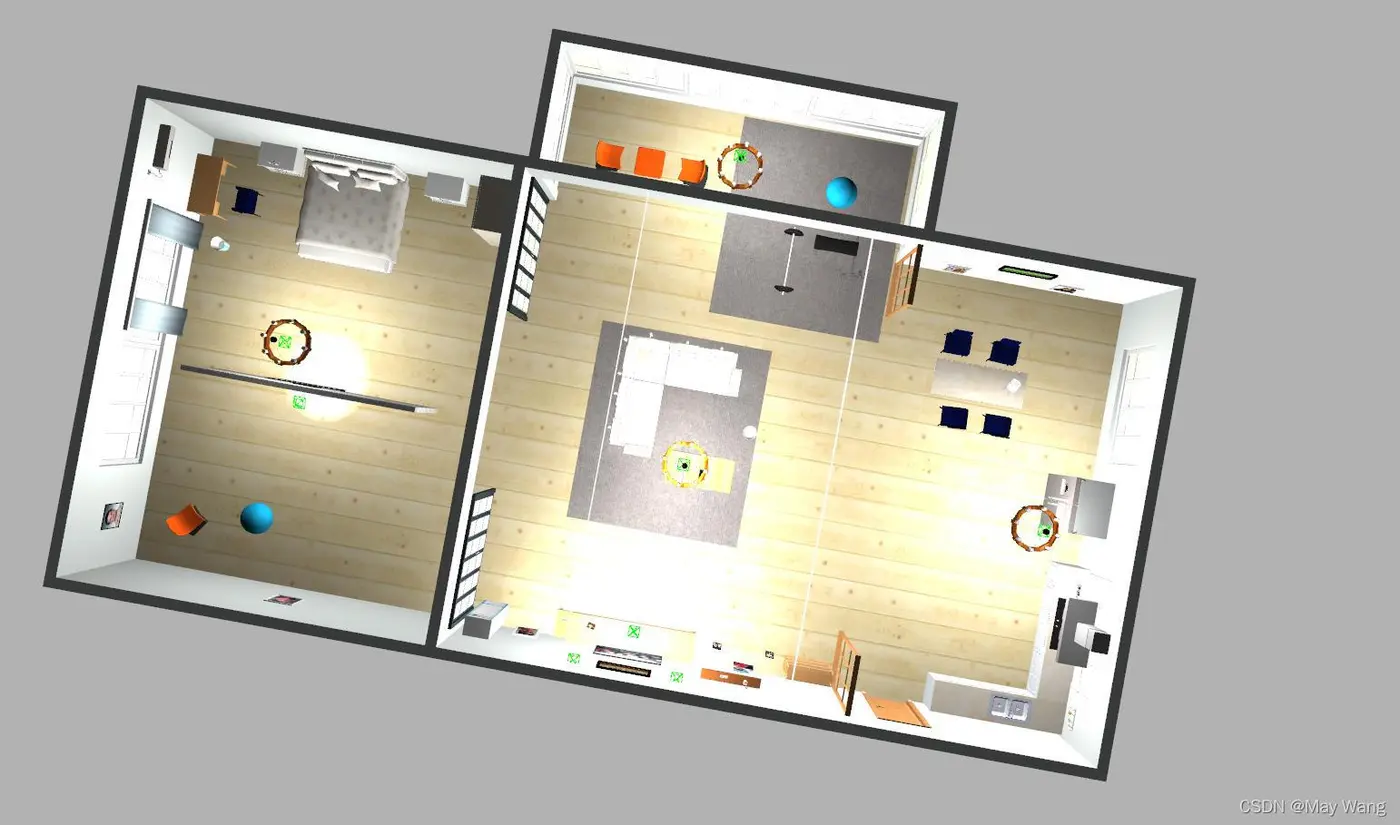
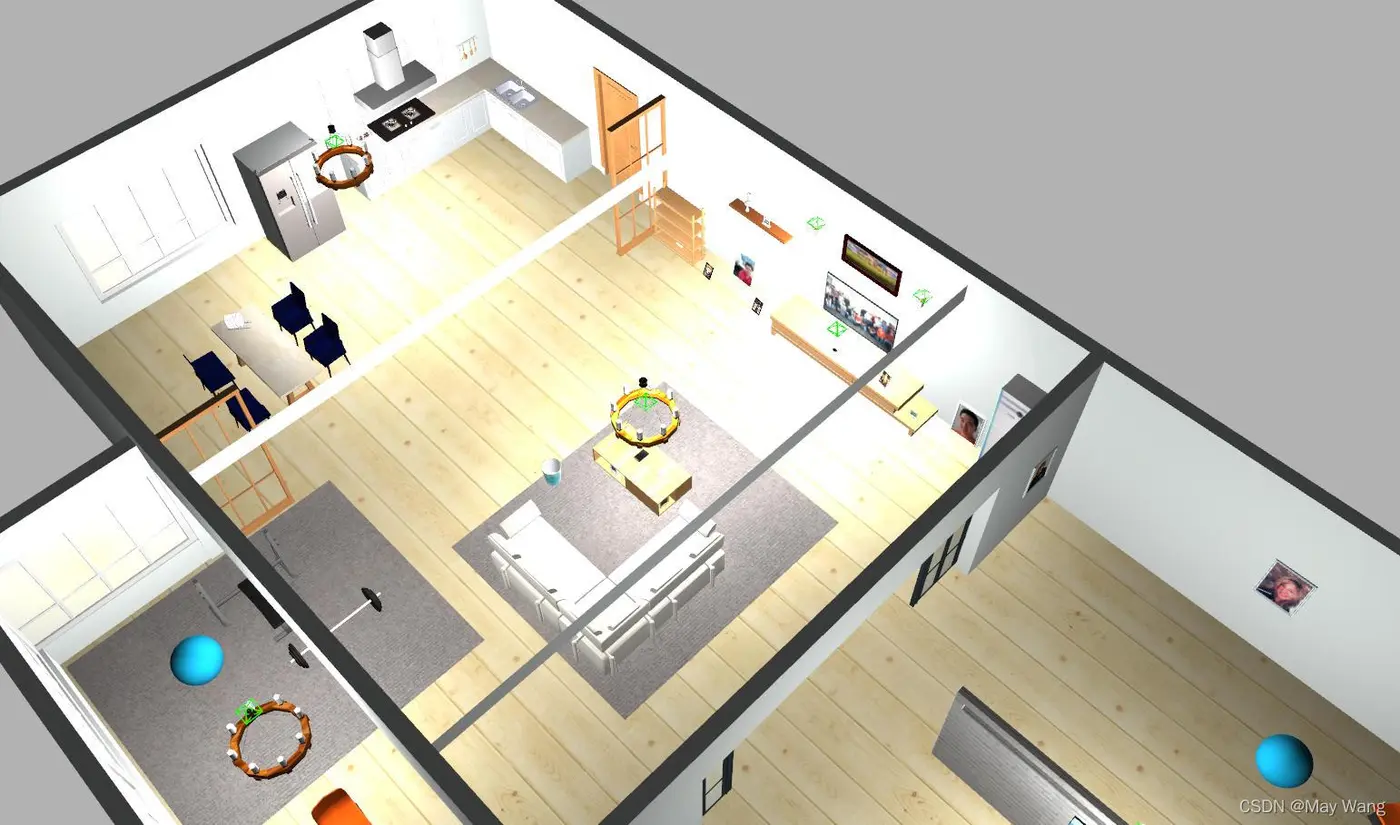
该室内环境需要在gazebo9以上版本中才能正常显示,因为ros-kinetic自带的gazebo7,运行以上launch会出现黑屏,此时需要将ros中的gazebo7卸载,重装gazebo9 环境,具体如下
卸载gazebo7
$ sudo apt-get remove gazebo7 gazebo7-common gazebo7-plugin-base libgazebo7:amd64 libgazebo7-dev:amd64 ros-kinetic-gazebo-*
设置镜像和 key
$ sudo sh -c 'echo "deb http://packages.osrfoundation.org/gazebo/ubuntu-stable `lsb_release -cs` main" > /etc/apt/sources.list.d/gazebo-stable.list'
$ wget http://packages.osrfoundation.org/gazebo.key -O - | sudo apt-key add -
安装gazebo 9
$ sudo apt-get update
$ sudo apt-get install gazebo9
$ sudo apt-get install libgazebo9-dev
新终端 输入gazebo 看是否启动环境。
此类安装方法的问题是 单纯的安装 Gazebo,但没有安装 gazebo_ros_pkgs。之前 ROS-full 安装会自动安装,但是单独安装 Gazebo 还需要手动安装。
根据网上可行教程
- gazebo_ros_pkgs 的官方仓库为 GitHub - ros-simulation/gazebo_ros_pkgs: Wrappers, tools and additional API's for using ROS with Gazebo。
记得选择 kinetic-devel 分支。
- 在工作空间,src 目录下克隆或者粘贴这些项目。
•
$ cd ~/catkin_ws/src
$ git clone https://github.com/ros-simulation/gazebo_ros_pkgs/tree/kinetic-devel
- 之前版本的 gazebo_ros 包中都会设置环境变量 gazebo_ros,现在也需要手动设置。在 home 下 ctrl + H 显示隐藏文件,在文件末尾加入环境变量。这样,就可以在 launch 文件中用 $(find gazebo_ros)指代这个路径。同时也加入工作空间的环境变量。
$ export find gazebo_ros=/home/usrname/catkin_ws/src/gazebo_ros
$ source /home/usrname/catkin_ws/devel/setup.bash
- 终端输入 $ gazebo 或者 $ roslaunch gazebo_ros empty_world.launch 命令打开。
- 若出现gazebo 界面一直卡在启动中,可以尝试
- (1)把 gazebo_model模型提前下载解压放在home 下的.gazebo/modles 中 (home xia ctrl+h 可显示隐藏文件夹)。
- gazebo models 模型链接
- http://pan.baidu.com/s/1pKaeg0F 密码:cmxc (来自rosclub.cn)或
osrf / gazebo_models / Downloads — Bitbucket
https://bitbucket.org/osrf/gazebo_models/downloads/
参考 教程:
- 下载Gazebo模型_一只努力翻身的咸鱼的博客-CSDN博客_下载gazebo模型
. 下载Gazebo模型这时运行下面Gazebo命令,OK,错误没有了,但怎么是一抹黑啊!roscore & rosrun gazebo_ros gazebo首次运行Gazebo,加载模型会出现非常缓慢,原因可能是不能正确下载模型。Warning [ModelDatabase.cc:356] Getting models from[http://gazebosim.org/models/...
https://blog.csdn.net/qq_40213457/article/details/81021562
(2)若下载了模型还卡,则重启计算机试试。
接下来,我们要在这个环境里放入 turtlebot3机器人并进行导航仿真。
二、导航包
Project :aws-robotics/aws-robomaker-sample-application-navigation
git链接:https://github.com/aws-robotics/aws-robomaker-sample-application-navigation
(1)
$ git clone https://github.com/aws-robotics/aws-robomaker-sample-application-navigation
将 aws-robomaker-sample-application-navigation/下的simulation_ws文件拷贝至catkin_ws/src 下
然后 catkin_make
接着
$ source devel/setup.bash
$ export TURTLEBOT3_MODEL=waffle_pi
$ roslaunch navigation_simulation small_house_turtlebot_navigation.launch
这一步可能会报错
Resource not found: turtlebot3_description_reduced_mesh
报这个错的源于 ros-medolic与 ros-kinetic的差异,改动如下几个地方即可:
(1) 在aws-robomaker-small-house-world/launch中新建文档 spawn_turtlebot.launch,该文档中
turtlebot3_description_reduced_mesh 已改为 turtlebot3_description
内容如下:
<launch>
  <!-- Optional environment variable, default is "waffle_pi". Note that "burger" does not have a camera -->
  <arg name="model" default="$(optenv TURTLEBOT3_MODEL waffle_pi)" doc="model type [burger, waffle, waffle_pi]"/>
  <!-- You may override arg parmaters when including this launch file -->
  <arg name="x_pos" default="0.0"/>
  <arg name="y_pos" default="0.0"/>
  <arg name="z_pos" default="0.0"/>
  <arg name="roll" default="0.0"/>
  <arg name="pitch" default="0.0"/>
  <arg name="yaw" default="0.0"/>
  <!-- Spawn the robot into Gazebo with the turtlebot description -->
  <param name="robot_description" command="$(find xacro)/xacro --inorder
   $(find turtlebot3_description)/urdf/turtlebot3_$(arg model).urdf.xacro" />
  <node pkg="gazebo_ros" type="spawn_model" name="spawn_urdf"
    args="-urdf -param robot_description -model turtlebot3_$(arg model)
          -x $(arg x_pos) -y $(arg y_pos) -z $(arg z_pos)
          -R $(arg roll) -P $(arg pitch) -Y $(arg yaw)"/>
  <!--
       Publish robot and joint states. This allows rviz to display robot data, and in
       the robot's coordinate frame. These nodes could go into the robot application
       .launch files instead.
    -->
  <node pkg="robot_state_publisher" type="robot_state_publisher" name="robot_state_publisher" output="screen"/>
  <node name="joint_state_publisher" pkg="joint_state_publisher" type="joint_state_publisher" />
</launch>
在aws-robomaker-small-house-world/launch/small_house_turtlebot_navigation.launch文档中
将line26 的 turtlebot3_description_reduced_mesh改为 aws_robomaker_small_house_world
如下
<include file="$(find aws_robomaker_small_house_world)/launch/spawn_turtlebot.launch">
同理在
simulation_ws/src/navigation_simulation/launch下也增加spawn_turtlebot.launch 文件(同上)
small_house_turtlebot_navigation.launch中的
turtlebot3_description_reduced_mesh 改为 aws_robomaker_small_house_world,
line 44 至line 49如下
改动前:
<!-- Spawn the robot into Gazebo with the turtlebot description -->
  <include file="$(find turtlebot3_description_reduced_mesh)/launch/spawn_turtlebot.launch">
    <arg name="x_pos" default="$(arg x_pos)"/>
    <arg name="y_pos" default="$(arg y_pos)"/>
    <arg name="yaw" default="$(arg yaw)"/>
  </include>
改动后:
<!-- Spawn the robot into Gazebo with the turtlebot description -->
  <include file="$(find aws_robomaker_small_house_world)/launch/spawn_turtlebot.launch">
    <arg name="x_pos" default="$(arg x_pos)"/>
    <arg name="y_pos" default="$(arg y_pos)"/>
    <arg name="yaw" default="$(arg yaw)"/>
  </include>
若需要看gazebo效果以及机器人动态路线导航则
$ roslaunch navigation_simulation small_house_turtlebot_navigation.launch
 follow_route:=false dynamic_route:=true gui:=true
运行rviz 或者rqt-image-view $ rviz 或 $ rosrun rqt_image_view rqt_image_view ,选择/camera/rgb/image_raw topic
效果如下
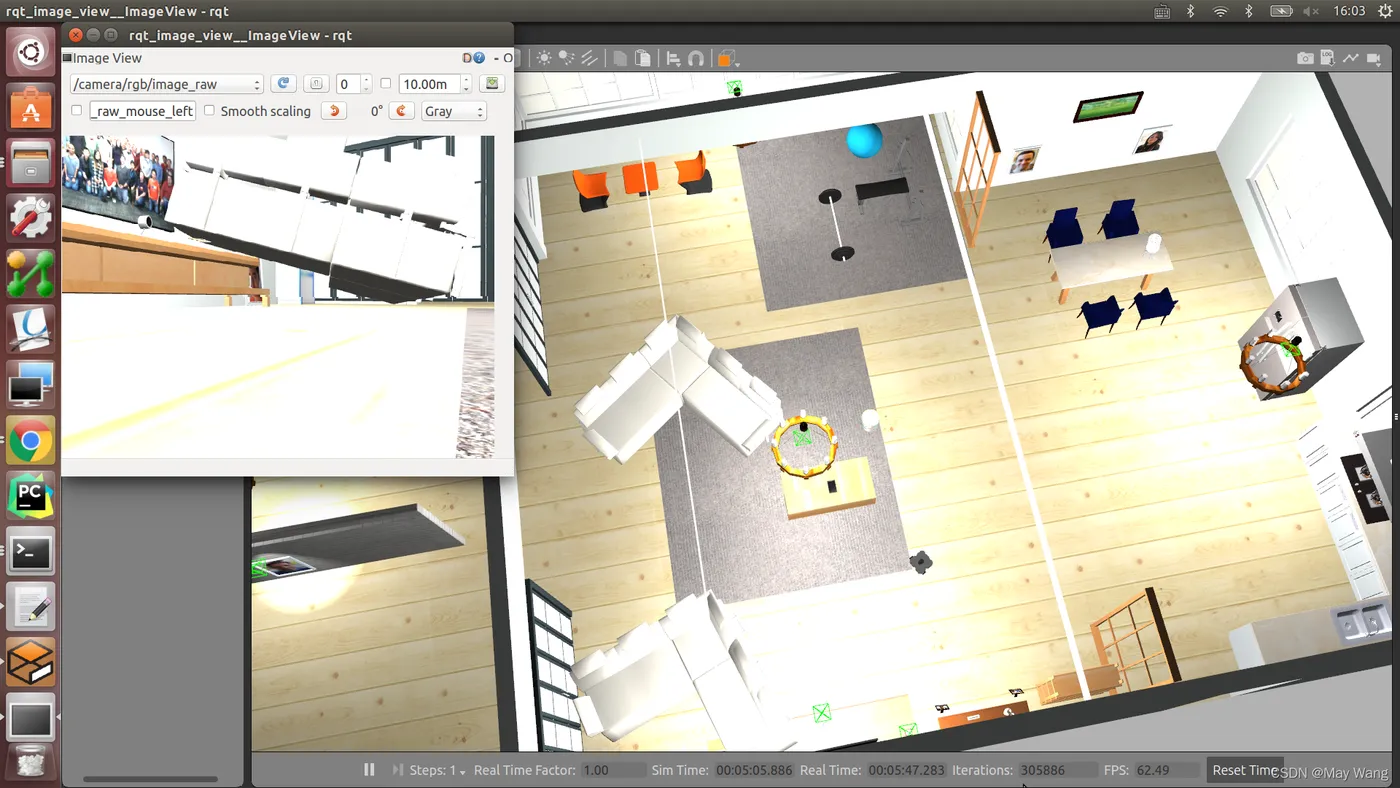
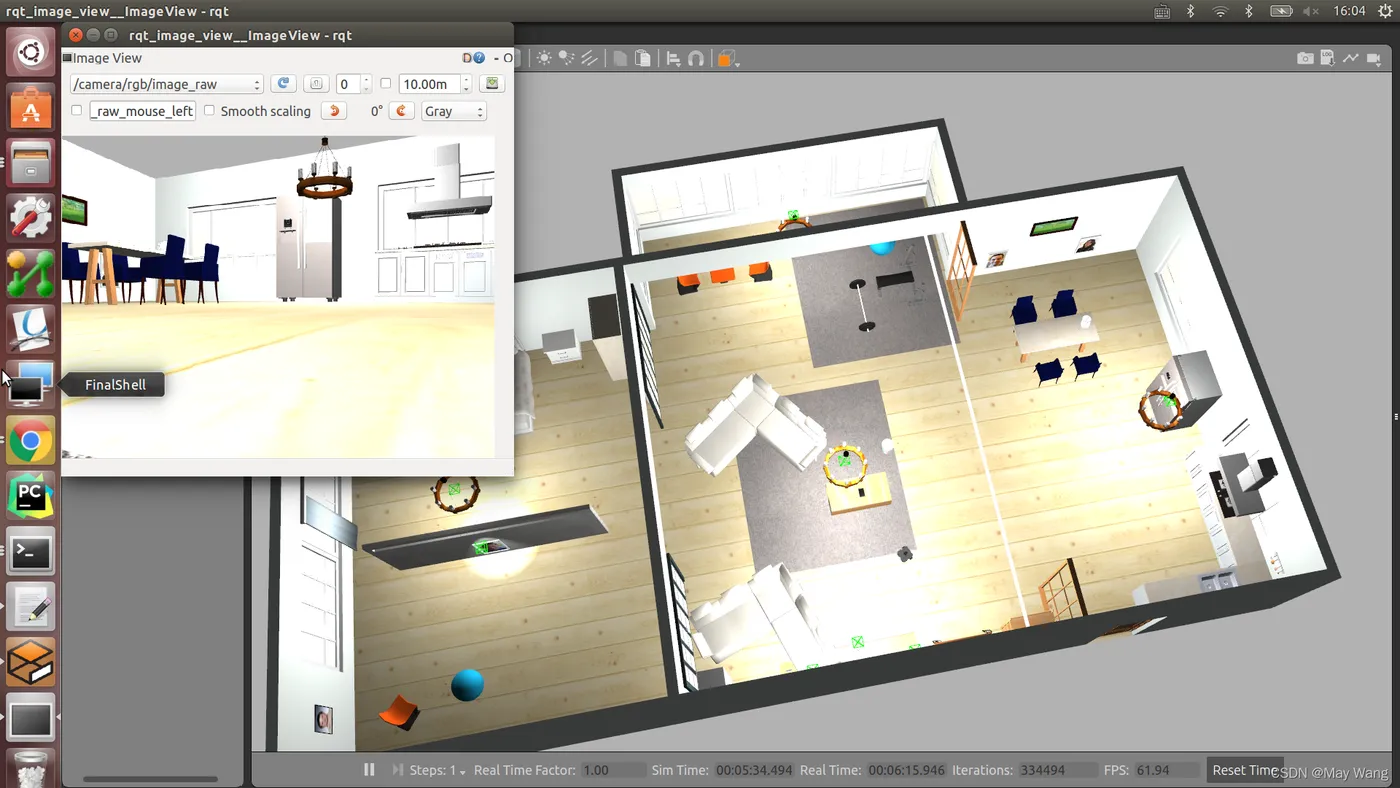
若要在其他环境( aws-robomaker-bookstore-world )中仿真则,其中bookstore_world 参考project: small_house_world.
roslaunch navigation_simulation bookstore_turtlebot_navigation.launch
 follow_route:=false dynamic_route:=true gui:=true
