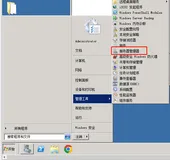
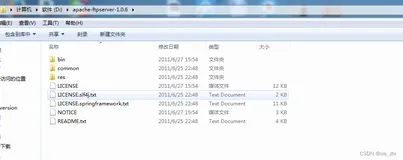
Please refer to the following blog:
http://blog.brodaric.com/?p=149
More than once I had to setup“light” FTP server after the failover cluster has been deployed and additionalstorage for FTP was not planned. Also, additional servers for highly availableFTP were not an option. Microsoft has an article that describes how to configure highlyavailable FTP site in a Windows Server 2008 failover cluster. The problem with that solution is that it requires additional available storage for your FTP site, and simply said it’s a bit complicated. I’ll show you how toquickly setup highly available FTP server on existing Windows Server 2008failover cluster without FTP dedicated storage.
Please be careful that you don’t impact the performance of your database or any other clustered application by setting up high volume FTP server on existing shared disk. High volume FTP usually work with lot of files which can create a substantial loadon your storage.
Steps are:
Create domain user for FTP
Create FTP root folder, user root folder and assign permissions
Setup FTP IP address
Create and configure FTP on each cluster node
Make FTP server highly available
Prerequisites:
Make sure that IIS 7.0 is installed on each cluster node.
If you are using Windows Server 2008, do not include the “FTP Server” role,instead download and install FTP 7.5 from one of the following locations:
If you are using Windows Server 2008R2 include the “FTP Server” role when installing IIS 7.0.
Create domain user for FTP:
In ADUC create user for FTP and assign them a least possible permissionson each cluster node.
Create FTP root folder, user root folder and assign permissions:
Make sure you are logged in to a cluster node that owns a cluster group with the storage where you will place your FTP root folder. Every FTP server needs aroot folder and in our case we will need a subfolder structure for isolating users. The FTP server’s engine logs in a user according to a username. For domain users home folder will be: %FTPRoot%\%UserDomain%\%UserName%
Example: We created a domain user ftpuser@mydomain.local and full path to its FTP home folder will be %FTPRoot%\MYDOMAIN\ftpuser.
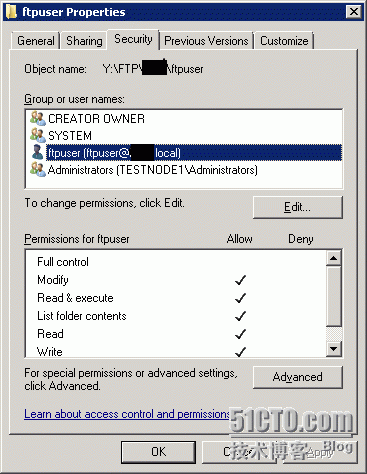
After creating folders, for each user’s folder set the following properties:
On Security tab under Advanced disable “Include inheritable permissions from this object’s parent”.
Remove “Users” from “Group or user names” and add FTP user with appropriate access rights (This way you will ensure FTP user isolation).
Setup FTP IP address:
One of the things that makes your FTP server highly available is also the unique IP address regardless of which cluster node serves the clients. To create a unique IP for FTP server we have to create Client Access Point in a cluster group that owns a shared disk with FTP content. An access point is a name and associated IP address information that we will add as a resource to our cluster group. This IP address will “travel” with the cluster group and storage, making your FTP always accessible.
For more information about the Client Access Point, Please check:
Using Multiple Client Access Points (CAP) in a Windows Server 2008 (R2) Failover Cluster
Understanding Access Points (Names and IP Addresses) in a Failover Cluster
https://technet.microsoft.com/en-us/library/cc732536.aspx
Create and configure FTP on each cluster node:
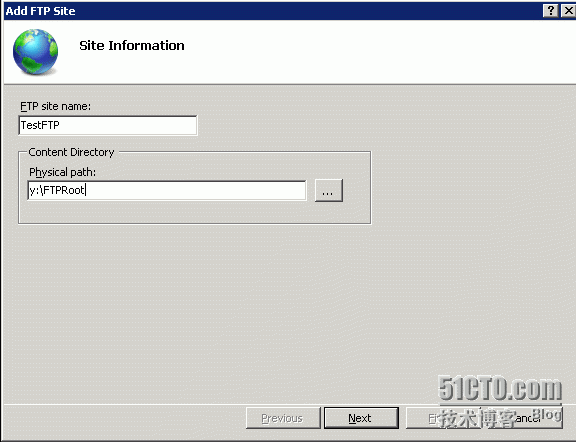
Open IIS Manager and follow this few basic steps for creating new FTP site.
Right click on Sites, than Add FTPsite.
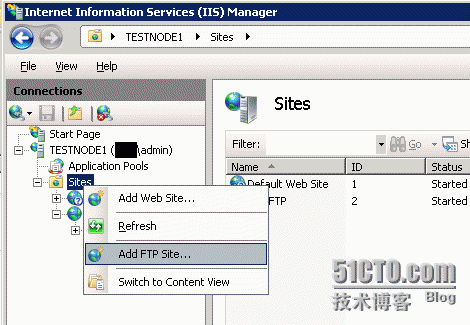
Give your FTP site name and enter physical path – it should point to FTP root folder previously created on shared drive.
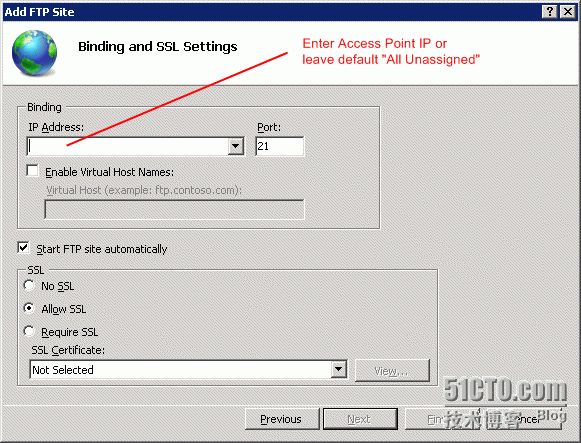
Binding and SSL settings:
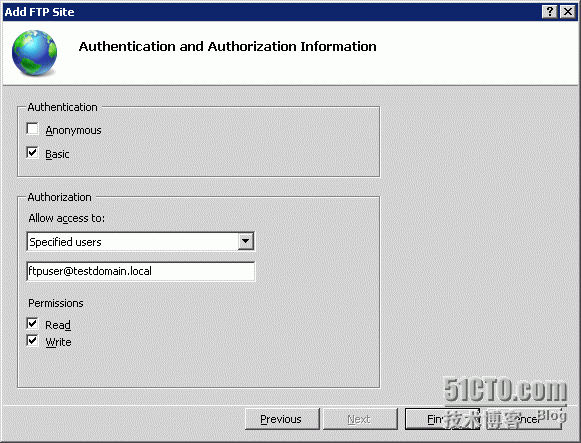
Under Authorization you can add multiple users (delimited with semicolon), or you can add them later. Each user will be logged to its own folder if you followed naming convention explained earlier.
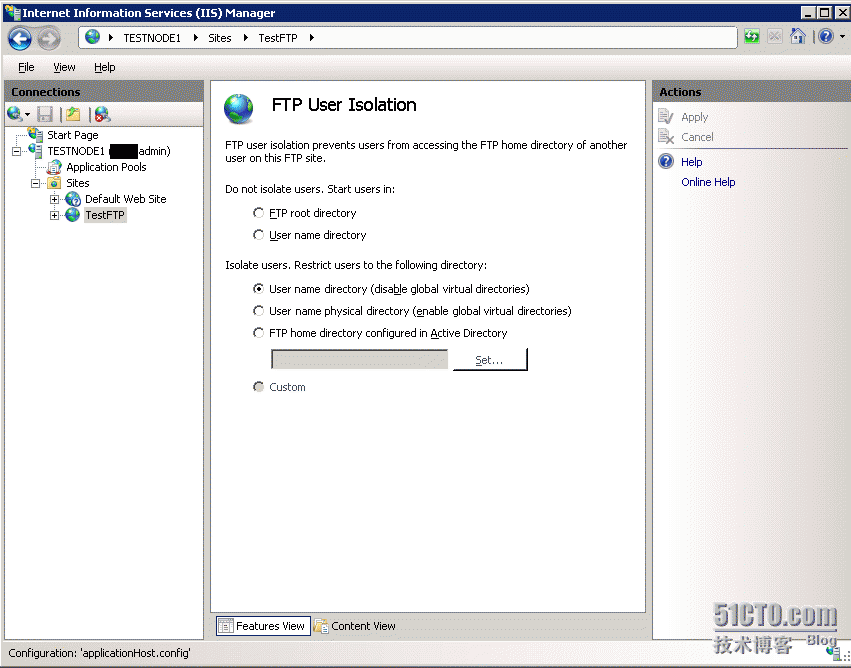
After creating FTP site on the first node you need to configure FTP on the other cluster nodes. Using Appcmd.exe allows you to create FTP on the other nodes without need to failover a group. You need to failover if want to create FTP from IIS Manager, since it won’t see the shared storage on the other nodes. Of course, for the proper testing you will need to failover group with FTP storage and monitoring script to other node.
To export the FTP site settings(change “TestFTP” to the name of your FTP) run from command prompt:
%windir%\system32\inetsrv\AppCmd.exe LIST SITE “TestFTP” /config /XML> TestFTP.xml
To import the settings on another node:
%windir%\system32\inetsrv\AppCmd.exe ADD SITE /IN < TestFTP.xml
Most of the things can be scripted,but if you have two node failover cluster creating some things manually is faster (application pool, SSL certificates, bindings etc.). Please check that all the settings on the other cluster nodes match the active node. This can bed one from IIS Manager once the FTP is created.
Make FTP server highly available:
The last step to configure highly available FTP site is to set up the genericscript resource that will be used to monitor the FTP service. Copythe following script to Windows\System32\inetsrv\Clusftp7.vbs and add it as generic resource script in Failover Cluster Management.
'Thisscript provides high availability for IIS FTP websites
'Thescript is applicable to:
'- Windows Server 2008: Microsoft FTP Service 7.5 for IIS 7.0 (available fordownload from microsoft.com)
'- Windows Server 2008 R2: FTP Service in the box
'Morethorough and application-specific health monitoring logic can be added to thescript if needed
OptionExplicit
'Helperscript functions
'Startthe FTP service on this node
FunctionStartFTPSVC()
Dim objWmiProvider
Dim objService
Dim strServiceState
Dim response
'Check to see if the service is running
set objWmiProvider =GetObject("winmgmts:/root/cimv2")
set objService =objWmiProvider.get("win32_service='ftpsvc'")
strServiceState = objService.state
If ucase(strServiceState) ="RUNNING" Then
StartFTPSVC = True
Else
'If the service is not running, try to startit
response = objService.StartService()
'response = 0 or 10 indicates that the requestto start was accepted
If ( response <> 0 ) and ( response<> 10 ) Then
StartFTPSVC = False
Else
StartFTPSVC = True
End If
End If
EndFunction
'Clusterresource entry points. More details here:
'http://msdn.microsoft.com/en-us/library/aa372846(VS.85).aspx
'Clusterresource Online entry point
'Makesure the FTP service is started
FunctionOnline( )
Dim bOnline
'Make sure FTP service is started
bOnline = StartFTPSVC()
If bOnline <> True Then
Resource.LogInformation "The resourcefailed to come online because ftpsvc could not be started."
Online = False
Exit Function
End If
Online = true
EndFunction
'Clusterresource offline entry point
'Onoffline, do nothing.
FunctionOffline( )
Offline = true
EndFunction
'Clusterresource LooksAlive entry point
'Checkfor the state of the FTP service
FunctionLooksAlive( )
Dim objWmiProvider
Dim objService
Dim strServiceState
set objWmiProvider =GetObject("winmgmts:/root/cimv2")
set objService =objWmiProvider.get("win32_service='ftpsvc'")
strServiceState = objService.state
if ucase(strServiceState) ="RUNNING" Then
LooksAlive = True
Else
LooksAlive = False
End If
EndFunction
'Clusterresource IsAlive entry point
'Dothe same health checks as LooksAlive
'Ifa more thorough than what we do in LooksAlive is required, this should beperformed here
FunctionIsAlive()
IsAlive = LooksAlive
EndFunction
'Clusterresource Open entry point
FunctionOpen()
Open = true
EndFunction
'Clusterresource Close entry point
FunctionClose()
Close = true
EndFunction
'Clusterresource Terminate entry point
FunctionTerminate()
Terminate = true
EndFunction
-------------------------------------------
for specific information for how to create the generic resource script in Failover Cluster Management,plese check:
How to configure IIS Web Site and Application Pool in Microsoft Failover Cluster
If you have any questions, please feel free to correct me
本文转自 zhangfang526 51CTO博客,原文链接:http://blog.51cto.com/zhangfang526/1721452