Office 365 系列之十一:使用 Windows PowerShell 管理 O365 平台

简介:


    正如之前我们说的,通过 O365 管理中心、Exchange 管理中心、Lync 管理中 心 SharePoint 管理中心能做的事情和能够实现的需求是远远满足不了客户的时 间需求的。可以使用用于 Windows PowerShell 的 Azure Active Directory 模块 cmdlet 执行 Azure AD 管理任务。而且还可以做到使用单个 Windows PowerShell 窗口连接和同时管理 Office 365、SharePoint、Exchange 和 Lync 管理任务。接下 来让我们一起来看看如何实现的。 


  1. 先决条件

  • 安装 Azure AD 模块的系统要求

    Windows 10、Windows 8.1、Windows 8、Windows 7、Windows Server 2016、Windows Server 2012 R2、Windows Server 2012 或 Windows Server 2008 R2。

  •  软件要求及下载链接 

    Microsoft Online Services 登录助手,下载链接如下:

https://www.microsoft.com/zh-cn/download/details.aspx?id=41950 

    Microsoft Azure Active Directory 模块,下载链接如下: 

https://connect.microsoft.com/site1164/Downloads/DownloadDetails.aspx?DownloadID=59185 

    Windows PowerShell Module for Lync Online,下载链接如下: 

http://www.microsoft.com/en-us/download/details.aspx?id=39366 

    SharePoint Online Management Shell, 下载链接如下: 

http://www.microsoft.com/en-us/download/details.aspx?id=35588 


注:1. 自 2014 年 10 月 20 日起,用于 Windows PowerShell 的 Azure 

Active Directory 模块(32 位版本)将正式停用; 

2. Exchange Online 是没有独立的模块的,已经包含在Azure AD中; 

3. 必须先安装Microsoft Online Services 登录助手才能安装其他组件


2.安装必备组件 

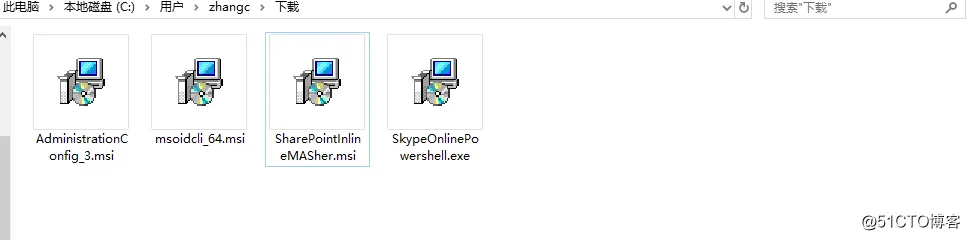
  • 根据上述提供的链接下载这个四个安装程序,加起来也就只有15M左右; 

image.png

  •  运行程序 Microsoft Online Services 登录助手(msoidcli_64),点击”安装“ 
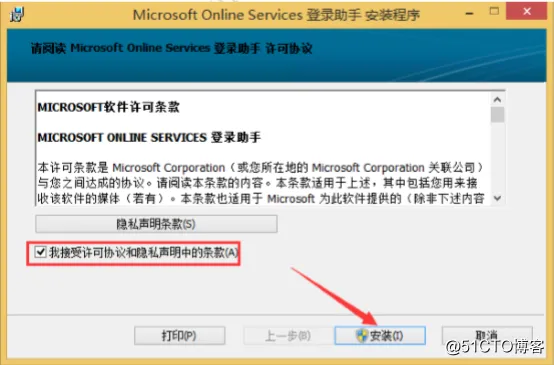
                             image.png

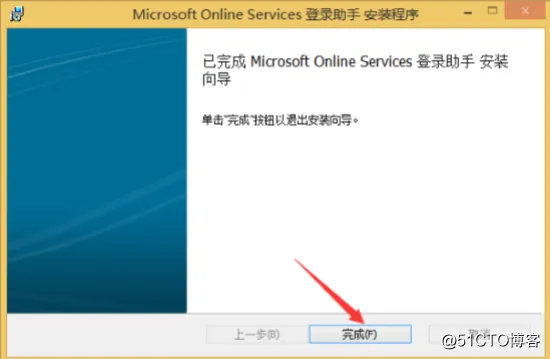
  • 安装也是神速的,点击”完成” 

                            image.png

  • 运行 Microsoft Azure Active Directory 模块程序,点击“Next” 
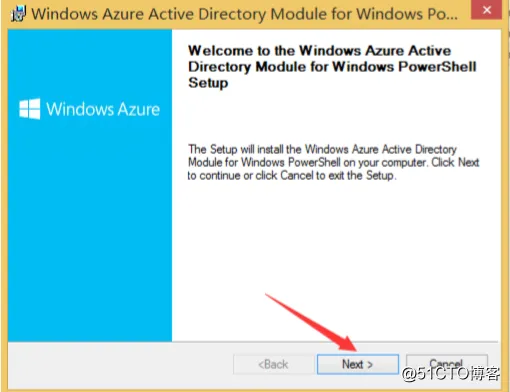
                            image.png

  • 勾选”I Accept the terms in the License Terms”, 点击“Next” 
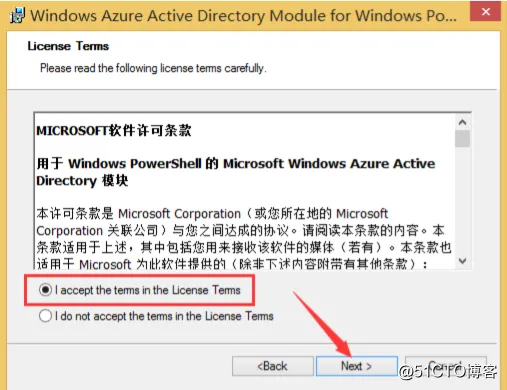
                           image.png

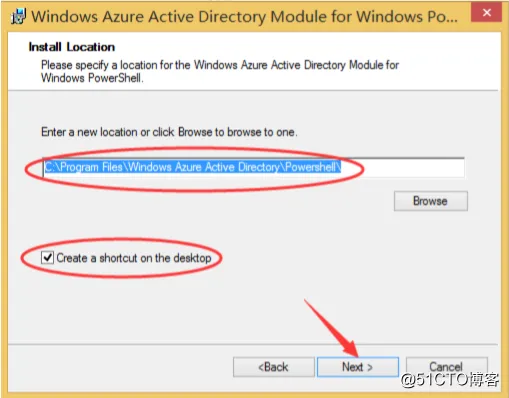
  • 确认安装路径和是否生成桌面快捷方式,点击”Next” 

                           image.png

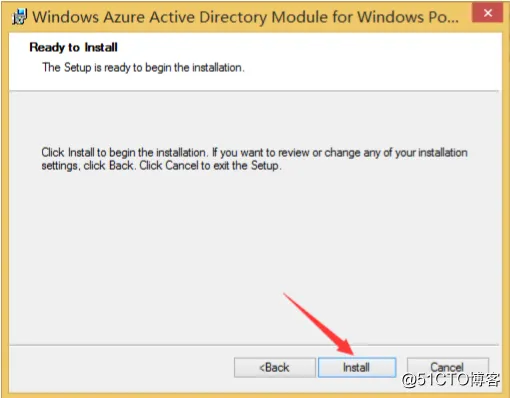
  • 点击”Install” 

                            image.png

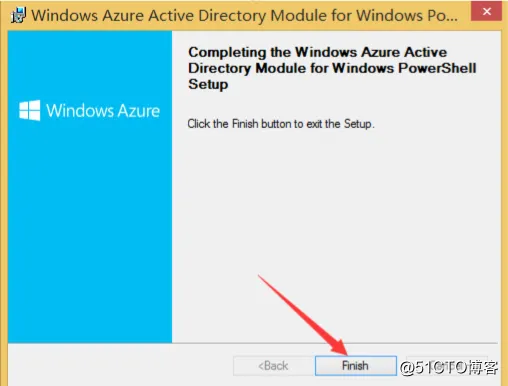
  • 完成安装后,点击”Finish” 

                            image.png

  • 运行 LyncOnlinePowerShell 模块程序,勾选”I agree to the license terms and conditions“,点击”Install“ 
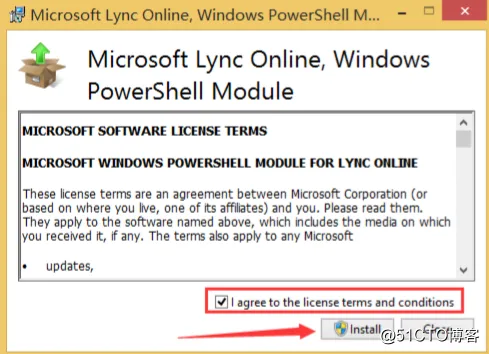
                            image.png

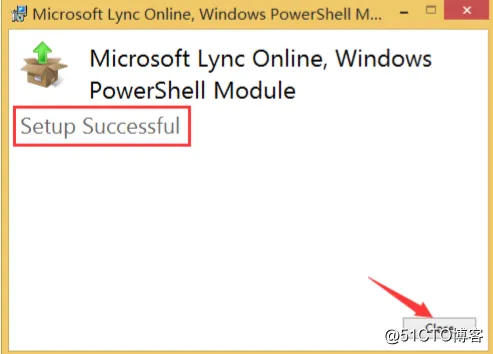
  • 安装成功后点击“Close“ 

                            image.png

  • 运行 SharePointOnlineManagementShell 模块安装程序,勾选”I accept the terms in the license Agreement“,点击”Install“ 
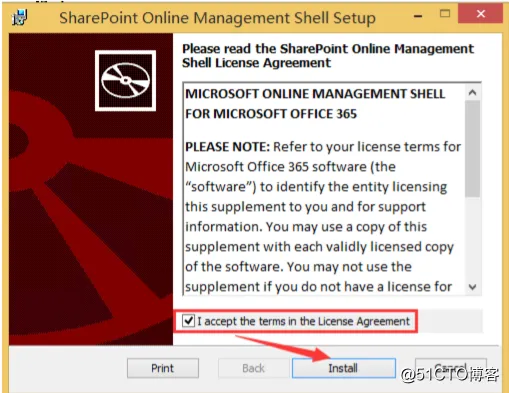
                            image.png

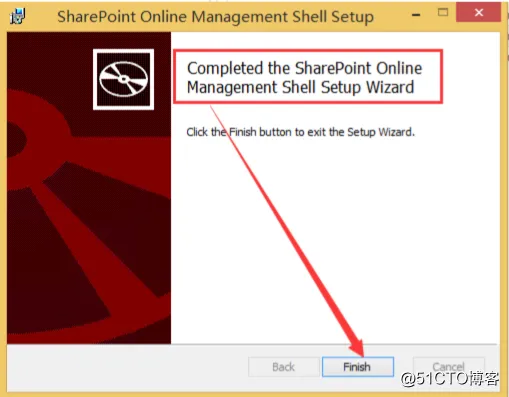
  • 完成安装后,点击“Finish“ 

                            image.png

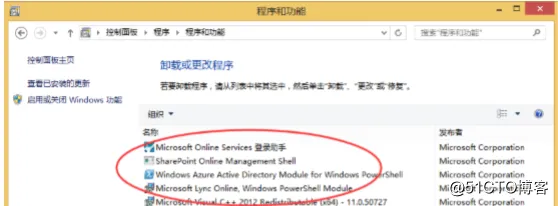
  • 在控制面板中可以确认已经安装了以上四个组件了,如图: 

                         image.png

 3. 连接到 Office 365

  • 已管理员身份运行Windows PowerShell

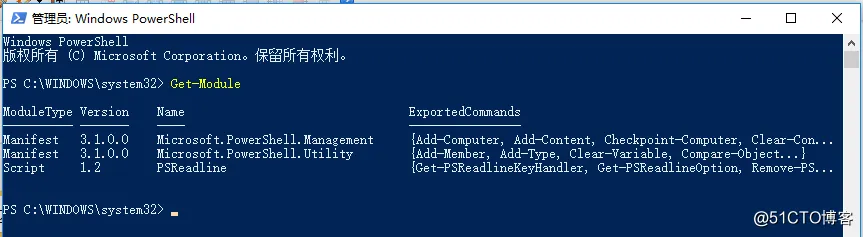
  • 运行“Get-Module”可以看到目前有几个模块。

        image.png

  • 运行命令” Import-Module MsOnline” 导入 O365 模块, 在运行” Get-Module”, 可看到已经导入多一个模块了; 
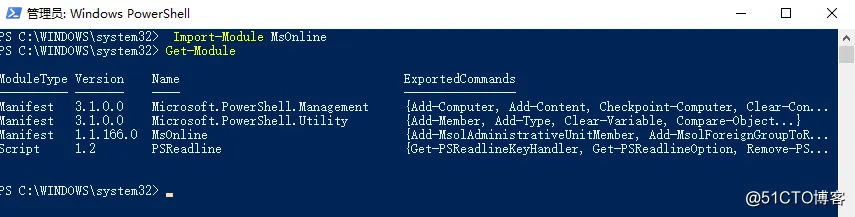
        image.png

  • 运行“$credential = Get-Credential“,输入 O365 管理员账户和密码,创建 O365 凭据; 
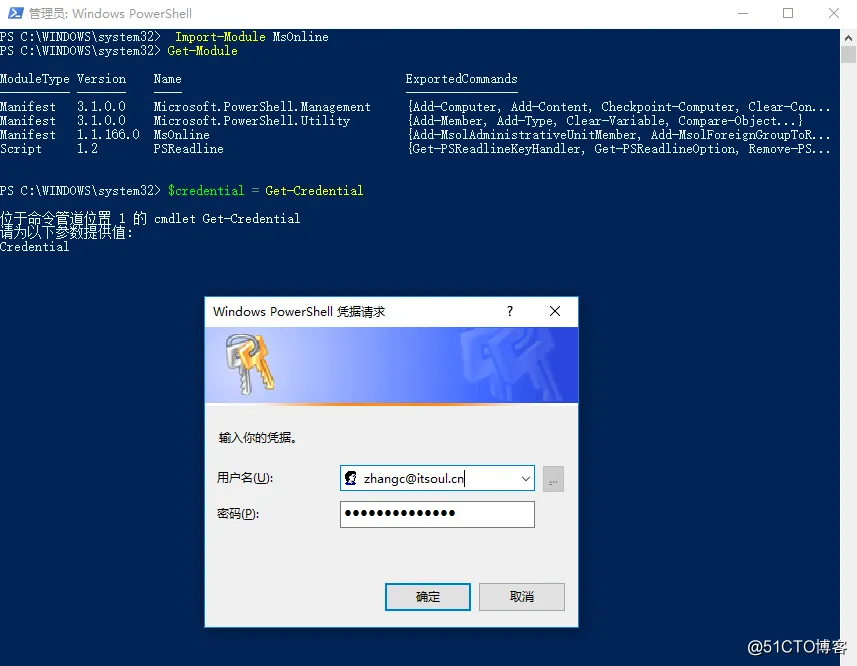
        image.png

  • 通过命令” Connect-MsolService -Credential $credential” 连接到 O365, 确保没 有任何报错和警告;

        image.png

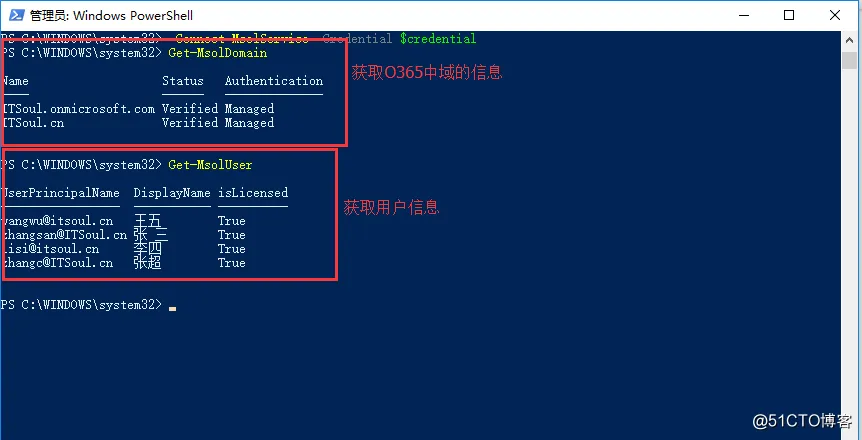
  • 此时就可以管理 O365 了,可以运行一下几个命令进行测试,如下: 

        image.png


 通过以上整个配置过程,我们已经实现了可以通过单一 Windows PowerShell 实现统一管理 Office 365 了。这样以后的批量管理操作就非常方便了,特别是很多管理中心无法实现的工作。 


本文转自 Juck_Zhang  51CTO博客,原文链接:http://blog.51cto.com/itsoul/2044165


相关文章
|
6月前
|
监控 编译器 Windows
Qt5实现Windows平台串口通信
Qt5实现Windows平台串口通信
|
6月前
|
安全 Linux iOS开发
Binary Ninja 5.1.8104 (macOS, Linux, Windows) - 反编译器、反汇编器、调试器和二进制分析平台
596 53
Binary Ninja 5.1.8104 (macOS, Linux, Windows) - 反编译器、反汇编器、调试器和二进制分析平台
|
6月前
|
Linux API iOS开发
Binary Ninja 4.2.6455 (macOS, Linux, Windows) - 反编译器、反汇编器、调试器和二进制分析平台
450 14
Binary Ninja 4.2.6455 (macOS, Linux, Windows) - 反编译器、反汇编器、调试器和二进制分析平台
|
6月前
|
Unix Shell Windows
Windows PowerShell技巧:使用findstr实现类似grep的功能
显示带有线路编号**: `/N`选项将显示每条结果前面带有其在线路上出现位置编号。
1007 7
|
6月前
|
存储 Windows
Windows PowerShell操作:如何删除环境变量
此外,还有一些第三方工具可以用来管理环境变量,这些工具通常提供了更为用户友好的界面来添加、编辑或删除环境变量,但是使用PowerShell可以更直接地控制这些设置,并且可以很容易地集成到脚本中以自动化环境配置的管理。
833 7
|
7月前
|
安全 Linux API
JEB Pro v5.31 (macOS, Linux, Windows) - 逆向工程平台
245 0
|
8月前
|
Unix Linux 编译器
解决在Windows平台上运行Golang程序时出现的syscall.SIGUSR1未定义错误。
通过这种结构,你的代码既可以在支持 SIGUSR1 信号的系统上正常工作,又可以在不支持这些信号的 Windows 系统上编译通过,确保跨平台的兼容性和功能的完整性。
315 0
|
11月前
|
安全 前端开发 Linux
Immunity CANVAS Professional 7.27 (macOS, Linux, Windows) - 渗透测试和漏洞利用平台
300 3
Immunity CANVAS Professional 7.27 (macOS, Linux, Windows) - 渗透测试和漏洞利用平台
|
Unix Linux iOS开发
Splunk Enterprise 10.0.0 (macOS, Linux, Windows) - 搜索、分析和可视化,数据全面洞察平台
227 0
|
固态存储 C++ 计算机视觉
Windows平台GIMP 2.10下载教程:零基础入门高级图像编辑
GIMP(GNU Image Manipulation Program)是一款开源跨平台图像编辑工具,支持图层管理、高级修图、色彩校正等功能,广泛应用于平面设计和照片修复。其优势包括全功能免费、插件生态丰富(600+扩展插件)、硬件要求低(1GB内存即可流畅运行)。本文详细介绍GIMP的软件定位、安装流程、首次配置及常见问题解答,帮助用户快速上手并充分利用其强大功能。

热门文章

最新文章