前言
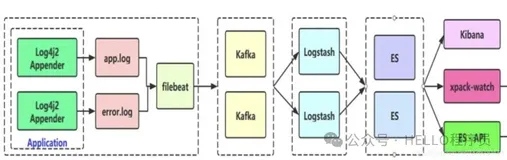
ELK: Elasticsearch + Logstash + Kibana.
实际部署:
Elasticsearch + Kibana + Logstash + (各种beats) filebeat
filebeat是将本机例如无法二次开发推送给Logstash的应用中的文件log推送给Logstash/Elasticsearch
以下为本机非容器直接部署步骤。本次教程以Ubuntu 22.04系统为例。
Elasticsearch安装
安装Elasticsearch
可直接参考官方教程
安装Elasticsearch:
wget wget https://artifacts.elastic.co/downloads/elasticsearch/elasticsearch-8.12.2-amd64.deb

sudo dpkg -i elasticsearch-8.12.2-amd64.deb
也可以通过安装GPG Key Ring和source list的方式通过apt install来安装:
wget -qO - https://artifacts.elastic.co/GPG-KEY-elasticsearch | sudo gpg --dearmor -o /usr/share/keyrings/elasticsearch-keyring.gpg

sudo apt-get install apt-transport-https

echo "deb [signed-by=/usr/share/keyrings/elasticsearch-keyring.gpg] https://artifacts.elastic.co/packages/8.x/apt stable main" | sudo tee /etc/apt/sources.list.d/elastic-8.x.list

sudo apt-get update && sudo apt-get install elasticsearch
安装完成后,查看输出窗口,可以看到动态生成的密码。我一般直接将该输出保存文件方便后续使用
--------------------------- Security autoconfiguration information ------------------------------

Authentication and authorization are enabled.
TLS for the transport and HTTP layers is enabled and configured.

The generated password for the elastic built-in superuser is : _XocGB8Pt*gTl+0f+FlU

If this node should join an existing cluster, you can reconfigure this with
'/usr/share/elasticsearch/bin/elasticsearch-reconfigure-node --enrollment-token <token-here>'
after creating an enrollment token on your existing cluster.

You can complete the following actions at any time:

Reset the password of the elastic built-in superuser with
'/usr/share/elasticsearch/bin/elasticsearch-reset-password -u elastic'.

Generate an enrollment token for Kibana instances with
 '/usr/share/elasticsearch/bin/elasticsearch-create-enrollment-token -s kibana'.

Generate an enrollment token for Elasticsearch nodes with
'/usr/share/elasticsearch/bin/elasticsearch-create-enrollment-token -s node'.

-------------------------------------------------------------------------------------------------
### NOT starting on installation, please execute the following statements to configure elasticsearch service to start automatically using systemd
 sudo systemctl daemon-reload
 sudo systemctl enable elasticsearch.service
### You can start elasticsearch service by executing
 sudo systemctl start elasticsearch.service
默认安装成功后,我们根据输出提示,启用elasticsearch
 sudo systemctl daemon-reload
 sudo systemctl enable elasticsearch.service
### You can start elasticsearch service by executing
 sudo systemctl start elasticsearch.service
默认启用SSL,我们可以通过https://192.168.1.20:9200访问。
用户名:elastic
密码:输出生成的密码(例如本例中:_XocGB8Pt*gTl+0f+FlU)
也可以使用curl来访问测试:
不过在此之前,将密码临时保存成变量
export ELASTIC_PASSWORD="your_password"

curl --cacert /etc/elasticsearch/certs/http_ca.crt -u elastic:$ELASTIC_PASSWORD https://localhost:9200
注意
默认安装位置为/usr/share/elasticsearch, 其他的同理。
以下命令可以生成kibana专属注册码,会使得kibana添加elasticsearch信息。如果之后安装好kibana没有注册,kibana也会弹窗让你输入。
/usr/share/elasticsearch/bin/elasticsearch-create-enrollment-token -s kibana
安装Kibana
同样可以使用apt install安装或者deb/rpm安装
Kibana官方安装方法
Kibana配置
配置位于/etc/kibana/kibana.yml
# 只需要修改server.host即可。
# =================== System: Kibana Server ===================
# Kibana is served by a back end server. This setting specifies the port to use.
#server.port: 5601

# Specifies the address to which the Kibana server will bind. IP addresses and host names are both valid values.
# The default is 'localhost', which usually means remote machines will not be able to connect.
# To allow connections from remote users, set this parameter to a non-loopback address.
server.host: "192.168.1.20"
#===================
如果你使用阿里云,有EIP和VPC内网IP,请直接输入VPC的内网IP即可,不需要输入公网IP
这个时候应该可以通过非本机来登录Kibana
Digital Ocean教程提到安装Nginx并配置成反向代理。(他配置是反向代理到80端口)
新版本本身不需要额外反向代理。除非你想端口换成80。而且也不需要额外配置网页用户验证用户名密码。
Kibana SSL
# 生成PEM格式的SSL证书
/usr/share/elasticsearch/bin/elasticsearch-certutil ca --pem

# 默认保存在/usr/share/elasticsearch/elastic-stack-ca.zip
# 解压
unzip /usr/share/elasticsearch/elastic-stack-ca.zip

# 路径:/usr/share/elasticsearch/ca
mkdir /etc/kibana/certs
mv /usr/share/elasticsearch/ca/* /etc/kibana/certs
rm -rf /usr/share/elasticsearch/ca/
配置kibana.yml
# =================== System: Kibana Server (Optional) ===================
# Enables SSL and paths to the PEM-format SSL certificate and SSL key files, respectively.
# These settings enable SSL for outgoing requests from the Kibana server to the browser.
server.ssl.enabled: true
server.ssl.certificate: /etc/kibana/certs/ca.crt
server.ssl.key: /etc/kibana/certs/ca.key
重启Kibana,即可使用HTTPS连接Kibana。
Kibana Enrollment
安装完成后在systemctl status kibana中可以看出
http://192.168.1.20:5601/?code=123456
通过以上链接进入Kibana面板进入配置。
/usr/share/elasticsearch/bin/elasticsearch-create-enrollment-token -s kibana
如果没有使用以上链接,在输入完enrollment注册码后,会让你输入验证码,通过运行/usr/share/kibana/kibana-verification-code即可。
logstash安装
logstash安装同样通过官网查看教程即可
logstash官方安装方法
logstash配置一
将配置从/etc/logstash/logstash-sample.conf复制并修改到/etc/logstash/conf.d/目录下,例如命名为10-input.conf
配置可以将input,output分开,这里为了方便,我们不分开成两个文件。
# 以logstash用户名义运行, 并且配置项路径为/etc/logstash
sudo -u logstash /usr/share/logstash/bin/logstash --path.settings /etc/logstash -t

# 测试限定的配置文件
bin/logstash -f first-pipeline.conf --config.test_and_exit

# 将以上命令合并
# == 由于默认是安装在/usr/share/logstash下,该命令执行前已经cd到usr/share/logstash。所以需要增加path.settings设置配置读取路径。
sudo -u logstash bin/logstash -f /etc/logstash/conf.d/10-input-and-output.conf --path.settings /etc/logstash --config.test_and_exit

# 如果使用filebeat + logstash做测试,例如将logstash output改为单独stdout(控制台输出),不需要添加--config.test_and_exit
使用用户名logstash运行时,由于文件夹/usr/share/logstash归属权为root,会报错Your settings are invalid. Reason: Path "/usr/share/logstash/data" must be a writable directory. It is not writable. 需要将文件夹及其子文件夹都修改用户归属权为logstash
chown logstash /usr/share/logstash/data -R
同理,权限导致的错误 File does not exist or cannot be opened /etc/elasticsearch/certs/http_ca.crt
# 单独授权certs/http_ca.crt, certs文件夹都会报错。
chmod 777 -R /etc/elasticsearch/
示例配置,输出到elasticsearch和stdout
input {

  beats {

    port => 5044
  }
}

output {

   elasticsearch {

     hosts => ["https://192.168.1.20:9200"]
     index => "%{[@metadata][beat]}-%{[@metadata][version]}-%{+YYYY.MM.dd}"
     ssl => true
     ################
     #ssl_certificate_verification => false
     #cacert => "/etc/elasticsearch/certs/http_ca.crt"
     # 以上的方式都即将弃用,已更换到如下两行
     ssl_verification_mode => none
     ssl_certificate_authorities => "/etc/elasticsearch/certs/http_ca.crt"
     ################
     user => "elastic"
     password => "_XocGB8Pt*gTl+0f+FlU"
   }
   stdout {
    codec => rubydebug }
}
这里的index非常关键,这将会是使用Kibana搜索的数据库名字来源。
为了方便测试logstash与elasticsearch连接测试,以及Kibana数据搜索测试。如果有报错提示,例如
[WARN ][logstash.outputs.elasticsearch][main][819e4368074e36871183245e19ecc296ba42dc18adefe03abf70bb82708ff262] Badly formatted index, after interpolation still contains placeholder: [logs-%{[@metadata][file]}-%{[@metadata][version]}-2013.12.11]
则代表没有上传成功。
本文配置简化为
index => "logs-%{
   +YYYY.MM.dd}"
这时候,通过Analytics的Discover, Data views选择logs-*即可看到日志。
filebeat安装
安装filebeat
默认安装好之后,不需要到/usr/share/filebeat执行,直接输入filebeat执行即可。
# 查看模块以及激活模块
filebeat modules list
filebeat modules enable nginx
默认情况下,已激活的模块内的配置文件其实还是enabled: false,需要手动进去修改成enable。
不然你会在systemctl status filebeat看到报错。运行失败。
creating module reloader failed: could not create module registry for filesets: module nginx is configured but has no enabled filesets
路径示例:/etc/filebeat/module.d/system.yaml
示例nginx.yaml:
- module: nginx
  access:
    enabled: true
    var.paths: ["/var/log/nginx/access.log*"]
配置filebeat
配置路径在/etc/filebeat/filebeat.yaml内。如果执行方式不直接使用filebeat,而是使用/usr/share/filebeat/bin/filebeat的话,他不会读取/etc/下的配置。不建议使用。
以下是配置文件
# /etc/filebeat/filebeat.yaml
# 这里只保留修改过的内容
setup.kibana:
  host: "192.168.1.20:5601"

output.elasticsearch:

  hosts: ["https://192.168.1.20:9200"]
  username: "elastic"
  password: "_XocGB8Pt*gTl+0f+FlU"
  ssl:
    enabled: true
    ca_trusted_fingerprint: "2F565528013197EFCAA18776A98B547B0DD9DDE3030DD90E67D7493E15A8"
    verification_mode: none
以上的配置文件需要注意的是,官网没有告诉你默认由于elasticsearch以及有自签名的TLS了,除了加ca_trusted_fingerprint外,还需要加verification_mode: none。
或者写成ssl.verification_mode: none
获取ca_trusted_fingerprint:
openssl x509 -fingerprint -sha256 -in config/certs/http_ca.crt
在输出的第一行就是fingerprint,但是由于多了冒号(:),你还需要将冒号删除或者替换。还有更方便的方法就是查看kibana的配置。
在最后一行,如果已经enroll的话,会添加了自动注册后的信息。而这个信息,在最后有ca_trusted_fingerprint,复制粘贴即可。
# /etc/kibana/kibana.yaml
# This section was automatically generated during setup.
elasticsearch.hosts: ['https://192.168.1.20:9200']
elasticsearch.serviceAccountToken: AAEAAWVsYXN0aWMva2liYW5hL2Vucm9sbC1wcm9jZXNzLXRva2VuLTE3MDk5MDU4MTczOTc6RC1IUTM0UldTQVM2ZmcyZDlhaFVkZw
elasticsearch.ssl.certificateAuthorities: [/var/lib/kibana/ca_1709905817848.crt]
xpack.fleet.outputs: [{
   id: fleet-default-output, name: default, is_default: true, is_default_monitoring: true, type: elasticsearch, hosts: ['https://192.168.1.20:9200'], ca_trusted_fingerprint: 2f565528013197efcaa18776a98b547b0dd9dde3030dd90e67d7493e15a8961d}]
测试filebeat连接Logstash
filebeat test config
filebeat test output
filebeat setup
filebeat setup -e
测试前,请先运行Logstash。
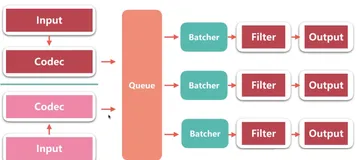
为了简单,我们的logstash.yml只有input和output。
# Sample Logstash configuration for creating a simple
# Beats -> Logstash -> Elasticsearch pipeline.

input {

  beats {

    port => 5044
  }

}

output {

  elasticsearch {

    hosts => ["https://localhost:9200"]
    index => "logs-%{
   +YYYY.MM.dd}"
    ssl_enabled => true
    ssl_certificate_verification => false
    cacert => "/etc/elasticsearch/certs/http_ca.crt"
    user => "elastic"
    password => "_XocGB8Pt*gTl+0f+FlU"
  }
  stdout {
    codec => rubydebug }
}
如果你想要output是logstash的话,请不要与output.elasticsearch一起启用。请单独启用一个。
如果遇到错误Exiting: /var/lib/filebeat/filebeat.lock: data path already locked by another beat. Please make sure that multiple beats are not sharing the same data path (path.data),请停止filebeat (systemctl stop filebeat)
以官方教程中为例:设置filebeat.inputs为教程下载的log文件。并把输出设置为output.logstash
Parsing Logs with Logstash
filebeat -e -c filebeat.yml -d "publish"
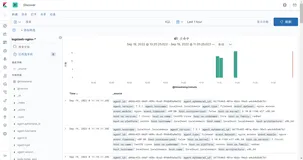
这个时候,回到Kibana, 就可以看到一堆log了。