
Ansible中,-k或--ask-pass选项用于提示输入SSH密码。这在你需要通过SSH连接到目标主机,但又没有设置SSH密钥对的情况下非常有用。使用-k选项后,Ansible将在执行playbook或命令时提示你输入SSH密码。
在使用ansible的时候会遇到如果不加 -k( 通过key验证)这个参数时认证失败。
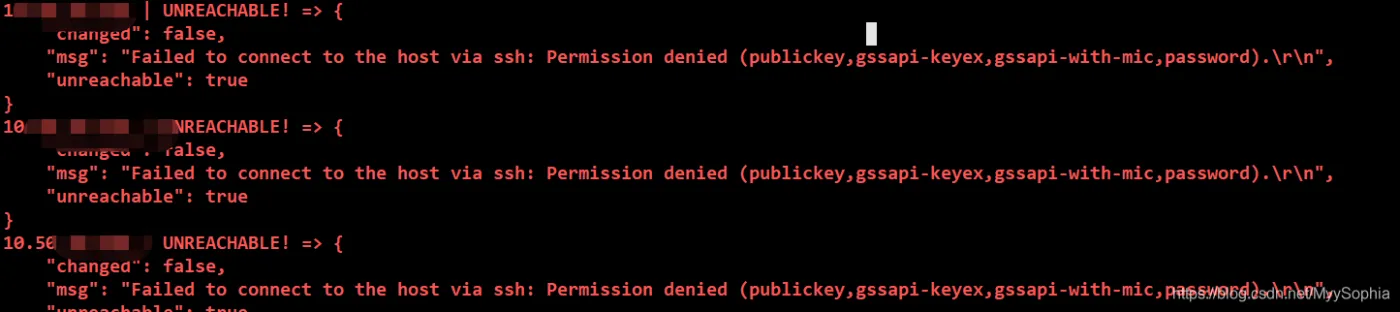 可以通过 ssh-keygen - > ssh-copy-id [-i [identity_file]] [user@]machine 把操作机的私钥添加到目标主机的密钥列表中。
ssh]# ssh-copy-id -i /root/.ssh/id_rsa.pub  root@10.50.**.**
root@10.50.10.**'s password:
Now try logging into the machine, with "ssh 'root@10.50.**.1*'", and check in:
  .ssh/authorized_keys
to make sure we haven't added extra keys that you weren't expecting.
 .ssh]# ssh 10.50.10.161
Last login: Mon May 24 10:19:54 2021 from 10.56.**.**
 需求 :A 主机想通过shh 、scp...等通过ssh协议连接主机的命令来连接B主机,但是不想输入密码。
具体操作:
1、ssh-keygen 用这个命令是用来生成本机的公钥和私钥的
2、将A主机的id_rsa.pub copy到B主机上
ansible gpservers -m copy -a 'src=/root/.ssh/id_rsa.pub dest=/root/.ssh/' -k
3、在B主机2中的的id_rsa.pub 重定向到B主机的authorized_keys(一个信任主机列表)。注意一点要用 >> 追加,以免覆盖掉其他的密钥验证。造成其他程序报错。这点很重要
ansible gpservers -m copy -a 'src=/root/.ssh/id_rsa.pub dest=/root/.ssh/' -k
以上2 、3两步可以用ssh-copy-id(会自动将第一步中生成的id_rsa.pub添加到目标主机的authorized_keys中。) 命令来实现。如果是多个主机需要一个一个执行,用ansible批量操作还是较快。
如果需要相互信任,只需要将如上步骤逆向进行即可。
需要用到ansible的fetch模块。
1、现将gpserver的18台机器上的公钥fetch到控制机
注意fetch 回来是不会被覆盖的,fetch回来的文件是放在以ip命名的一个文件夹里面
2、重定向。
------------------------------update 2020年5月24日21:38:15--------------------------------
如若是非root用于,别于root的用户的就是需要对authorized_keys 赋权。
默认是664
ssh]$ ll
total 16
-rw-rw-r-- 1 gpadmin gpadmin  796 May 24 21:35 authorized_keys
-rw------- 1 gpadmin gpadmin 1675 May 24 21:17 id_rsa
-rw-r--r-- 1 gpadmin gpadmin  398 May 24 21:17 id_rsa.pub
-rw-r--r-- 1 gpadmin gpadmin  403 May 22 22:00 known_hosts
非root用户ssh 自己需要710权限。这一点容易忽视,请注意
ssh]$ ll
total 16
-rwx--x--- 1 gpadmin gpadmin  796 May 24 21:35 authorized_keys
-rw------- 1 gpadmin gpadmin 1675 May 24 21:17 id_rsa
-rw-r--r-- 1 gpadmin gpadmin  398 May 24 21:17 id_rsa.pub
-rw-r--r-- 1 gpadmin gpadmin  403 May 22 22:00 known_hosts
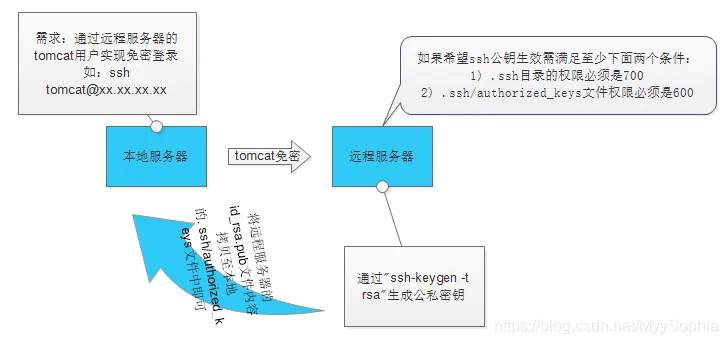 如果希望ssh公钥生效需满足至少下面两个条件:
1) .ssh目录的权限必须是700
2) .ssh/authorized_keys文件权限必须是600
---------------update 2021年7月28日16:47:52
在建立hadoop集群时,做免密验证时有如下报错
centos7
 ~]# ssh-copy-id -i ~/.ssh/id_rsa.pub hadoop102
/bin/ssh-copy-id: INFO: Source of key(s) to be installed: "/root/.ssh/id_rsa.pub"
/bin/ssh-copy-id: INFO: attempting to log in with the new key(s), to filter out any that are already installed
/bin/ssh-copy-id: INFO: 1 key(s) remain to be installed -- if you are prompted now it is to install the new keys
Permission denied (publickey,gssapi-keyex,gssapi-with-mic).
这个配置需要修改
1. /etc/ssh/sshd_config
2. PasswordAuthentication yes
~]# ssh-copy-id -i ~/.ssh/id_rsa.pub 192.168.56.12
/bin/ssh-copy-id: INFO: Source of key(s) to be installed: "/root/.ssh/id_rsa.pub"
/bin/ssh-copy-id: INFO: attempting to log in with the new key(s), to filter out any that are already installed
/bin/ssh-copy-id: INFO: 1 key(s) remain to be installed -- if you are prompted now it is to install the new keys
root@192.168.56.12's password:
Number of key(s) added: 1
Now try logging into the machine, with:   "ssh '192.168.56.12'"
and check to make sure that only the key(s) you wanted were added.
[root@hadoop100 ~]#
[root@hadoop100 ~]#
[root@hadoop100 ~]# ssh hadoop102
Last login: Wed Jul 28 07:57:20 2021 from 192.168.56.12
[root@hadoop102 ~]# exit
--update 2022年1月16日22:59:00
使用expect 多进程完成免密验证
注意点:
1. ip.txt 中的内容
192.168.56.11 ninesun0318
192.168.56.12 ninesun0318
8.142.104.169 ro....
2. expect交互那块,根据实际情况修改
注意EOF 时不要随意敲空格,一定要用table键,send完消息之后一定要使用\r 回车。
- spawn:触发,执行命令
- expect:识别输出
- send:发送信息
#!/bin/bash
# 2022年1月16日22:10:51
# ninesun
while read ip;do
#判断当前主机上是否有共要文件
if [ ! -f ~/.ssh/id_rsa ];then
        ssh-keygen -P "" -f ~/.ssh/id_rsa
fi
#从文件中ip 和密码
ipaddr=`echo $ip | awk '{print $1}'`
passwd=`echo $ip | awk '{print $2}'`
echo "$ipaddr"
echo "$passwd"
#判断是否可以ping通
{
ping -c1 -W1 $ipaddr >&/dev/null
if [ $? -eq 0 ];then
        /usr/bin/expect <<-EOF
        set timeout 10
        spawn ssh-copy-id  $ipaddr
        expect {
                #"yes/no" { send "yes\r"; exp_continue }
                "password:" { send "$passwd\r" }
        }
        expect eof
        EOF
fi
}&
done <ip.txt
wait
echo "all finished"
--update
2022年5月30日15:49:18
#!/bin/bash
# Copyright 2018 Xiak.com.
#
# Licensed under the Apache License, Version 2.0 (the "License");
# you may not use this file except in compliance with the License.
# You may obtain a copy of the License at
#
#     http://www.apache.org/licenses/LICENSE-2.0
#
# Unless required by applicable law or agreed to in writing, software
# distributed under the License is distributed on an "AS IS" BASIS,
# WITHOUT WARRANTIES OR CONDITIONS OF ANY KIND, either express or implied.
# See the License for the specific language governing permissions and
# limitations under the License.
##########################################
# 脚本用法
# passwordless.sh 192.168.1.5,192.168.1.6,192.168.1.7 your-cluster-password
# 参数说明:
#   总共两个参数,参数之间用空格隔开
#   第一个参数定义了集群的IP地址,IP之间用逗号隔开
#   第二个参数为所有集群的密码
##########################################
# 脚本只要发生错误,就终止执行
set -o errexit
# 遇到不存在的变量就会报错,并停止执行
set -o nounset
# 只要一个子命令失败,整个管道命令就失败,脚本就会终止执行
set -o pipefail
# 工作目录
root_dir="/xiak/k8s"
# 生成的 cert 文件存放目录
cert_dir="$root_dir/cert"
hosts="${HOSTS:="${1}"}"
password="${2}"
# 工具 expect
if ! (hash expect) >/dev/null 2>&1; then
    echo "=== expect command not found: Aborting ===" 1>&2
    exit 2
fi
if ! (hash ssh-copy-id) >/dev/null 2>&1; then
    echo "=== ssh-copy-id command not found: Aborting ===" 1>&2
    exit 2
fi
##########################################
# Function: SshKeyGen()
# Usage:    SshKeyGen
# Params:   Null
# Comments: 生成 id_rsa id_rsa.pub
##########################################
SshKeyGen() {
    # Delete old id_rsa
    rm -f ~/.ssh/id_rsa
    rm -f ~/.ssh/id_rsa.pub
    # Generate new id_rsa.pub
    expect -c "
        set timeout -1;
        spawn ssh-keygen -t rsa;
        expect {
            */root/.ssh/id_rsa* {send -- \r;exp_continue;}
            *passphrase):*      {send -- \r;exp_continue;}
            *again:*            {send -- \r;exp_continue;}
            eof                 {exit 0;}
        };"
}
##########################################
# Function: SshKeyGen()
# Usage:    SshKeyGen 192.168.1.2,192.168.1.3 password
# Params:
#   $1 主机列表,主机之间以逗号分隔,不能有空格
#   $2 主机的密码
# Comments:
#   1. 生成 id_rsa id_rsa.pub
#   2. 免密登录
##########################################
SshWithoutAuth() {
    SshKeyGen
    IFS=',' read -ra host_array <<< "${1}"
    for host in "${host_array[@]}";
    do
        echo "ssh-copy-id to $host"
        expect -c "set timeout -1;
            spawn ssh-copy-id $host;
            expect {
                *(yes/no)* {send -- yes\r;exp_continue;}
                *assword:* {send -- ${2}\r;exp_continue;}
                eof        {exit 0;}
            }" >/dev/null 2>&1;
    done
}
SshWithoutAuth ${hosts} ${password}
echo "All tasks done!"
-- update 2022年7月15日13:36:57
# 在control_node节点上生成密钥对
ssh-keygen -t rsa -f ~/.ssh/id_rsa -N ''
for host in 192.168.200.{27..33};do
  # 将各节点的主机信息(host key)写入control_node的
  # `~/.ssh/known_hosts`文件
  ssh-keyscan $host >>~/.ssh/known_hosts 2>/dev/null
  # 将control_node上的ssh公钥分发给各节点:
  sshpass -p'123456' ssh-copy-id root@$host &>/dev/null
done
